
Remove an HKCU Registry Value for All Users (Without Removing the Key)
Luca, one of our Master Packager users, wrote us an email with a question: Is it possible to remove just a registry value without removing the entire registry key for all users?
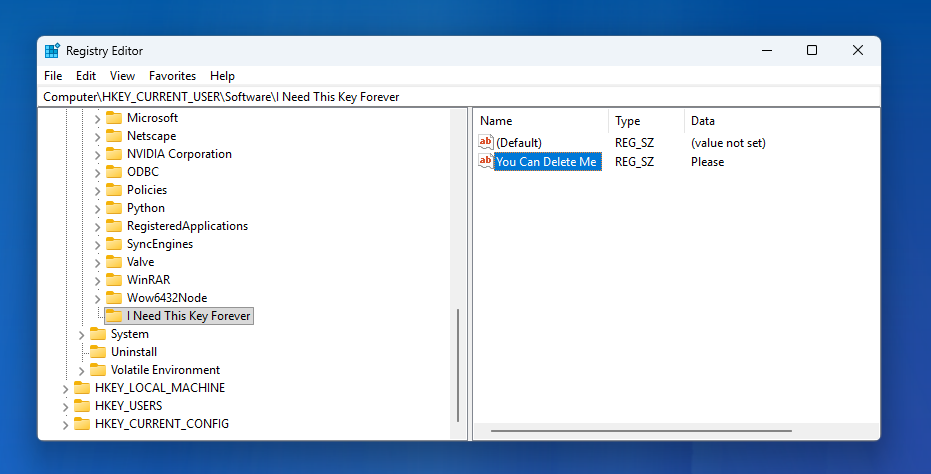
We replied with this blog post.
Yes. It is possible – just not straight out of the box. Let me show you how to do that with Master Packager Suite Community (free).
Steps
-
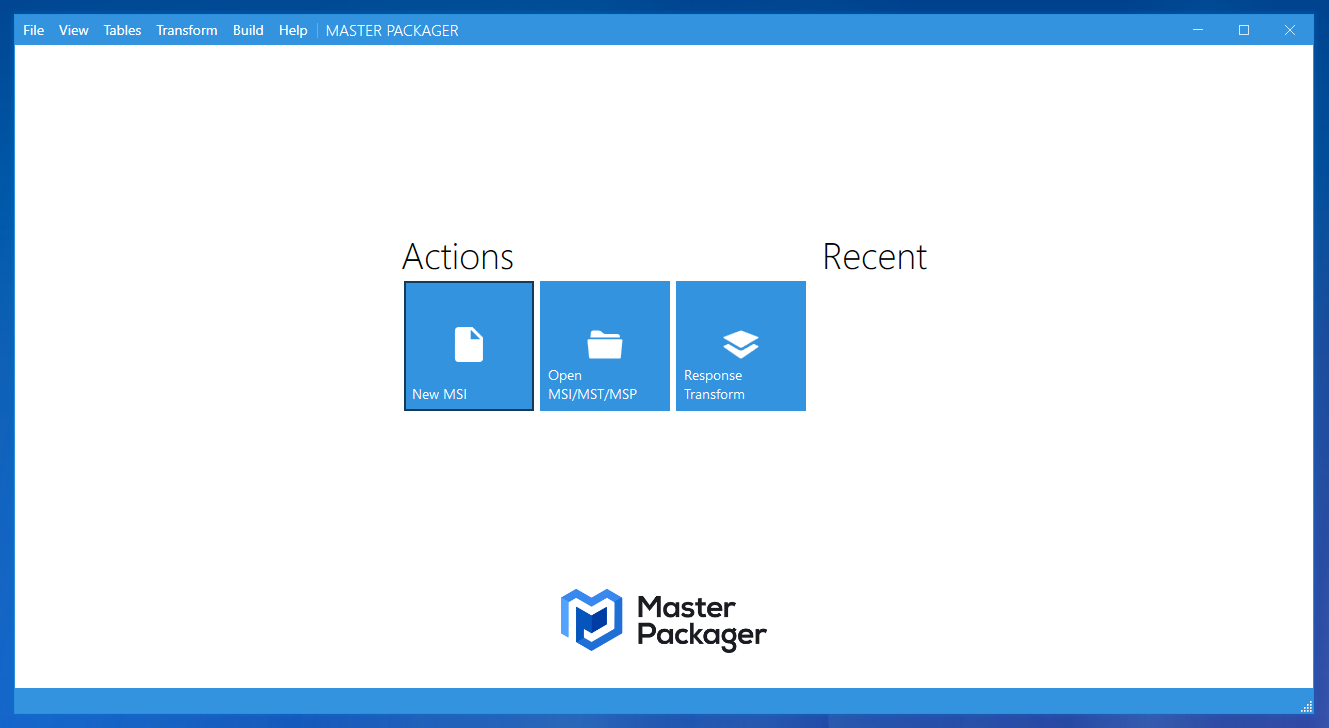
Create a new MSI using Master Packager.
-
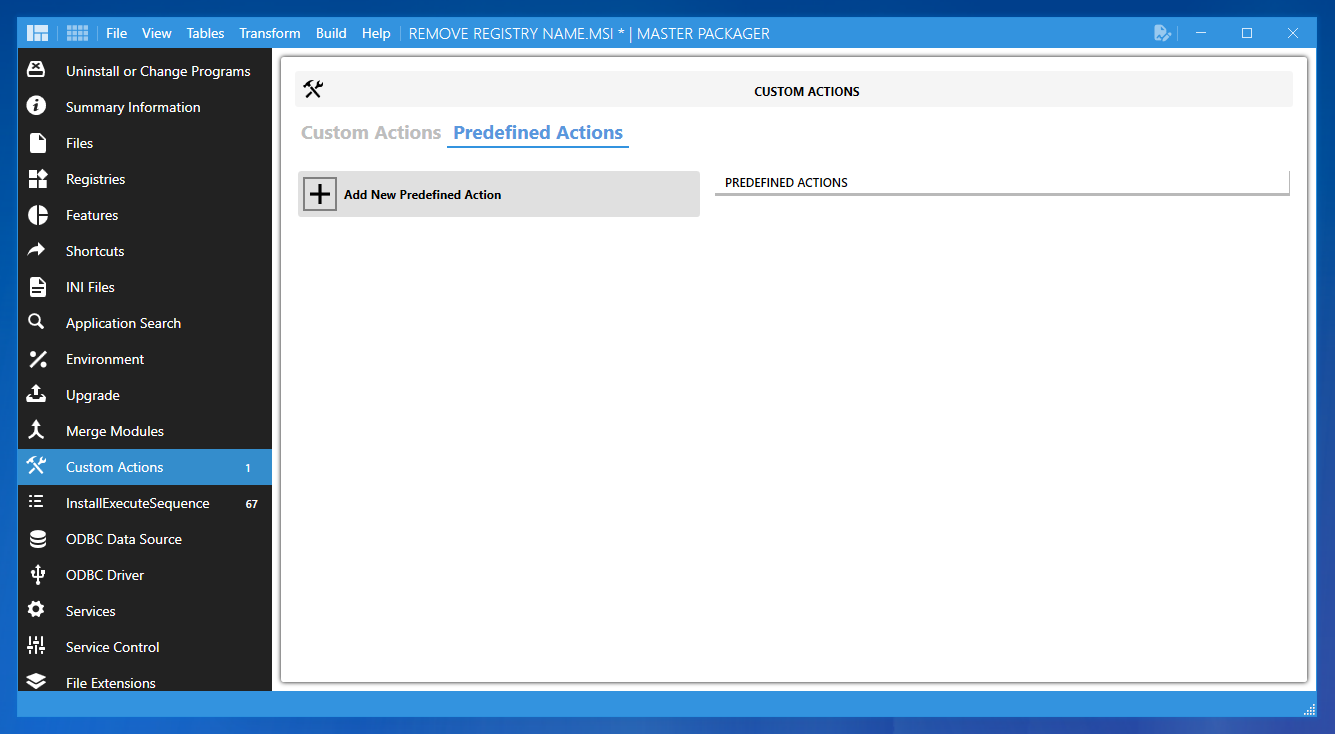
Go to Custom Actions -> Predefined Actions -> Add new Predefined Action. These are our pre-built MSI Custom Actions with a simple user interface to solve common app packaging problems with an MSI, and they work excellently under the system account that Intune and Configuration Manager use.
-
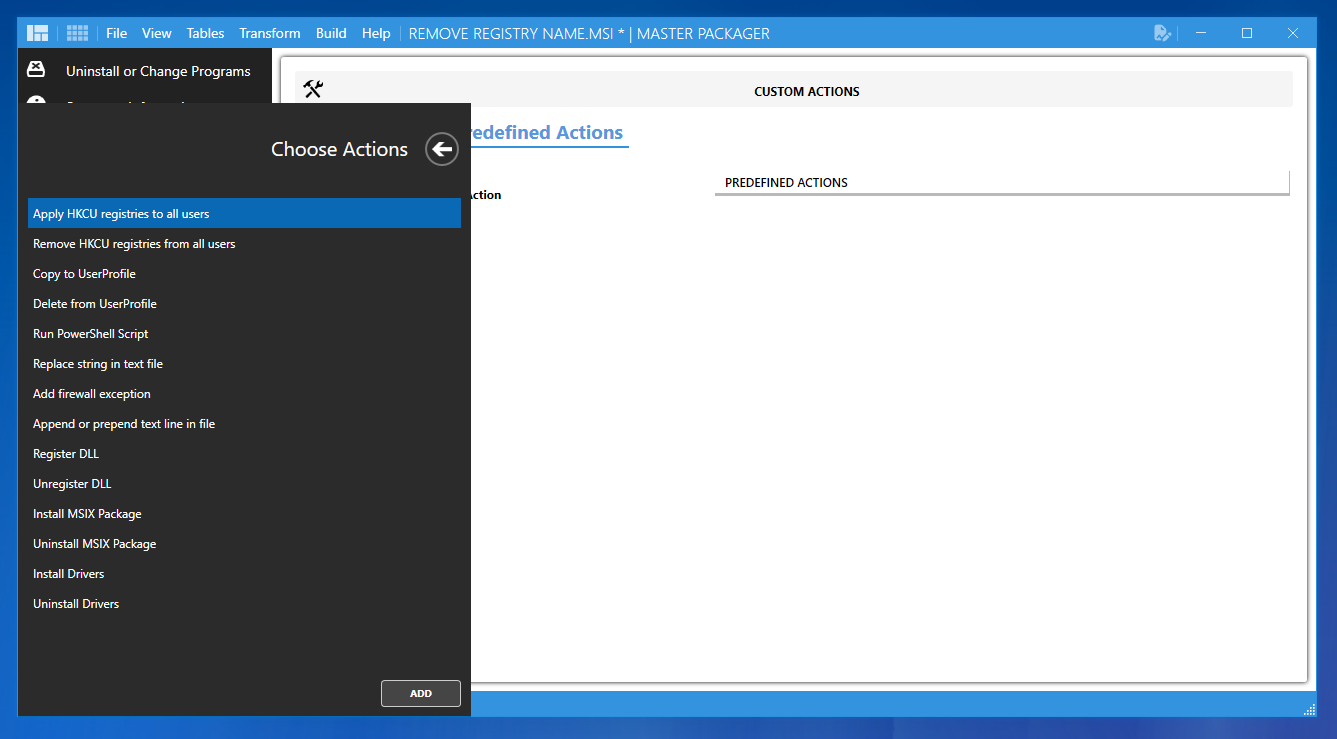
Select and add “Apply HKCU registries to all users”. Why not “Remove HKCU registries from all users”? Because that one is designed to remove a whole registry key, however the ask is to remove only a specific value. For that we do not have a simple UI, yet.
-
Edit the registry content that needs to be removed. The trick here is to replace the value data with a hyphen “-”.
Before:
Windows Registry Editor Version 5.00
[HKEY_CURRENT_USER\Software\I Need This Key Forever]
"You Can Delete Me"="Please"
After:
Windows Registry Editor Version 5.00
[HKEY_CURRENT_USER\Software\I Need This Key Forever]
"You Can Delete Me"=-
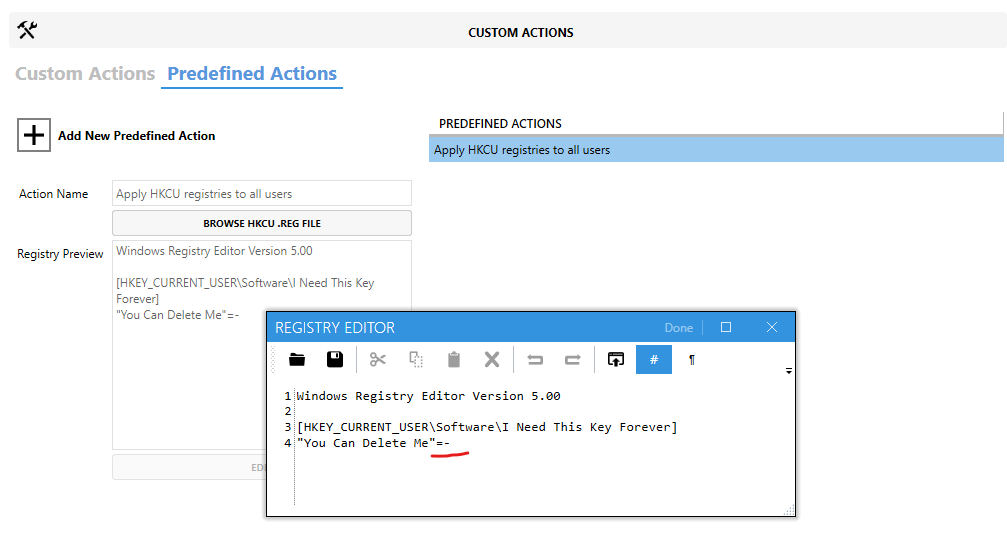
This change will make the “Apply HKCU registries to all users” action delete the registry value instead of setting it.
- By default, “Apply HKCU registries to all users” is executed during installation. If that is the intent, then nothing else needs to be done. However, if you want to remove this registry value while leaving the key intact on MSI uninstallation, then go to the Master Packager Table Editor. Select InstallExecuteSequence and replace the Condition values for the
MP_ApplyHKCUForAllUsersandMP_SetApplyHKCUForAllUsersactions fromNOT REMOVEtoREMOVE~="ALL".
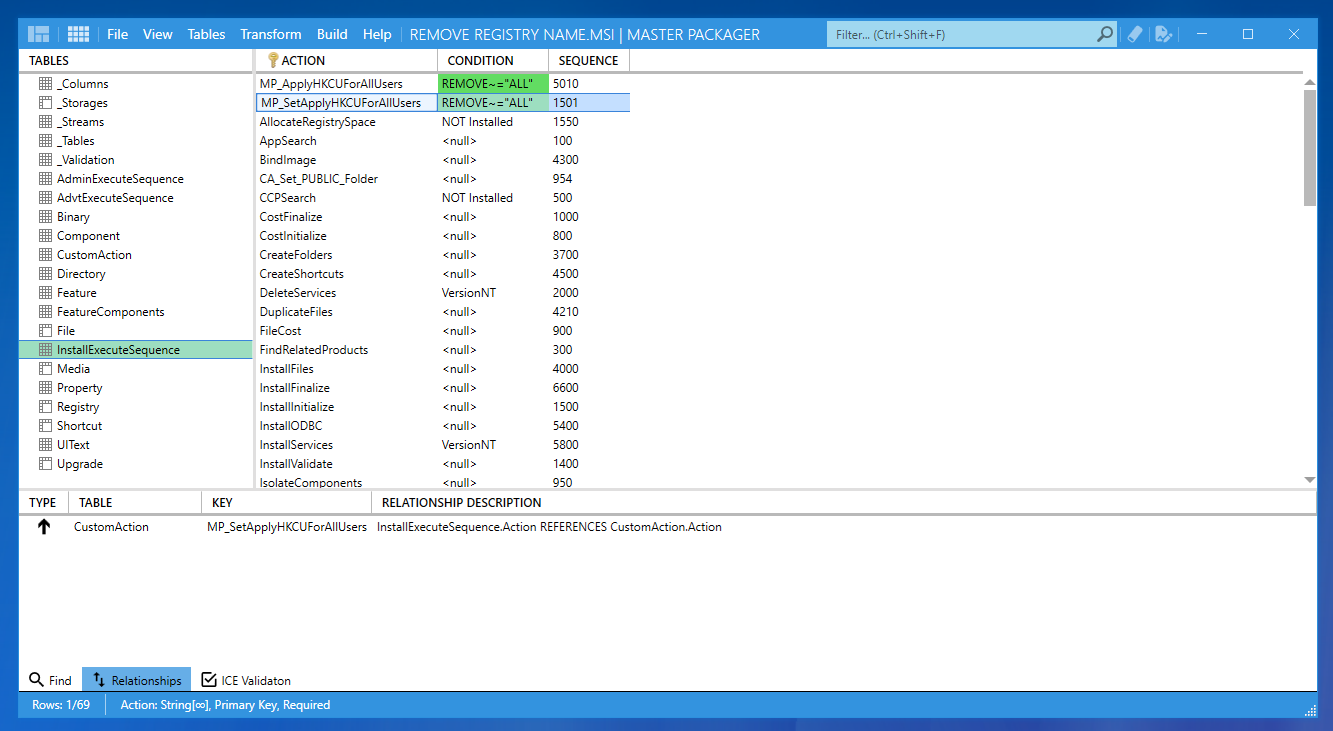
Do not forget to add a name, version, manufacturer and a nice icon to the MSI.
Also, if you are creating an MSI that only uses a Custom Action, the MSI will finish installing with an error. Every MSI needs at least one Feature and Component. If you were to create a file, registry entry, etc., Master Packager would create a Feature and Components for you – but not in the case where there is only a Custom Action. To create a Feature and Component, go to Master Packager Advanced Editor -> Features and right-click to add them.
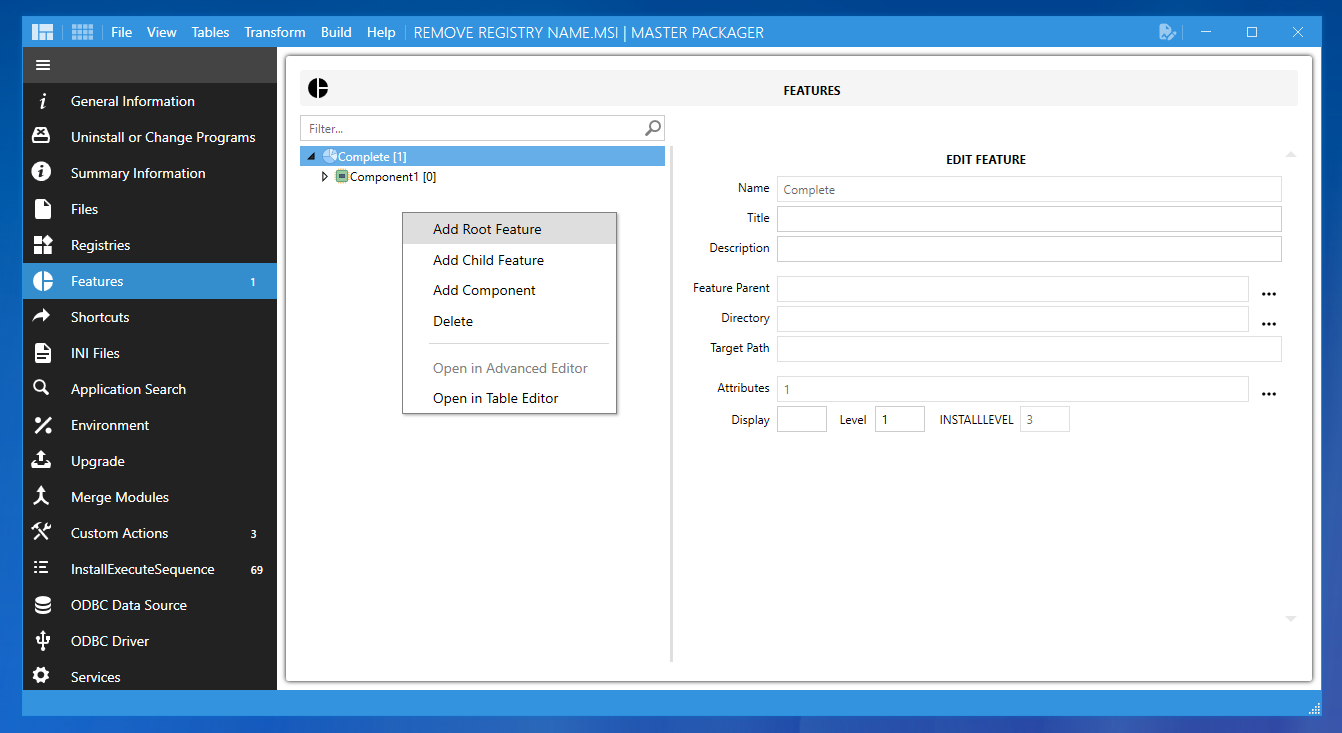
And it is done. We have an MSI that removes an HKCU registry value while leaving the key intact. All of this works under a system account installation with your deployment solution.
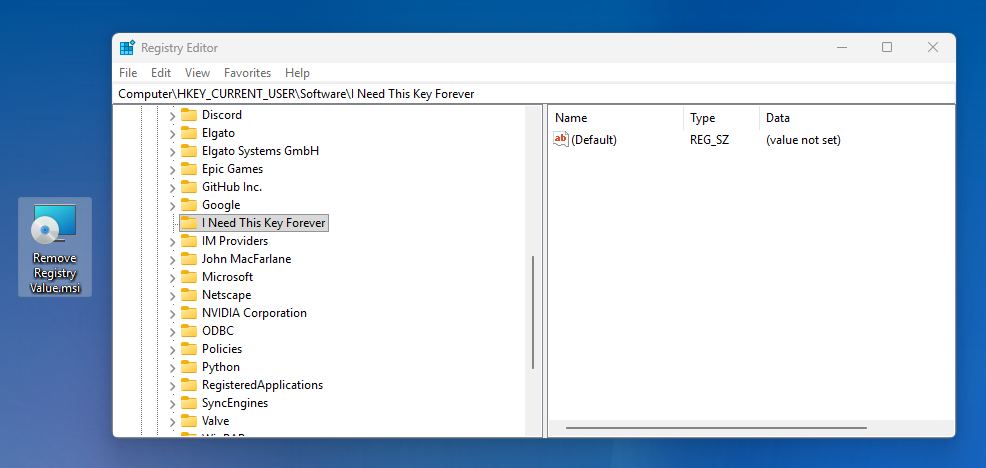
Application packaging is not just about finding a silent switch. It is an art to ensure your business applications are there when they need to be, and in a state that helps your business be the most efficient.
And for that it is good to be a Master Packager who knows how to remove a registry value without removing the key for all users while installing it from your favorite deployment system.
If you want to learn more about the art of application packaging and be able to package any Win32 app for your organization, check out our Master Packager courses, where we share our decade of knowledge in a 5-day remote workshop.