
Introducing Master Packager Dev 2.0.0
Our mission is to end the endless cycle of re-doing, where developers spend time figuring out how to build an installer while organizations spend time and money fixing them. This cycle creates so much wasted effort and cost around installers - resources that could be directed toward moving the world forward instead of re-doing stuff.
Master Packager Dev is the solution to finally stop this waste. Version 2.0.0 focuses on beauty and user experience for home users. Software developers usually build installers for home users first and only then think about organizations that need to deploy those installers to thousands of devices at once. If we want more developers to choose a solution created by experts, we need to make the installer excellent not only for organizations and their deployment systems, but also for regular home users.
Build beautiful and functional installers
Install welcome view
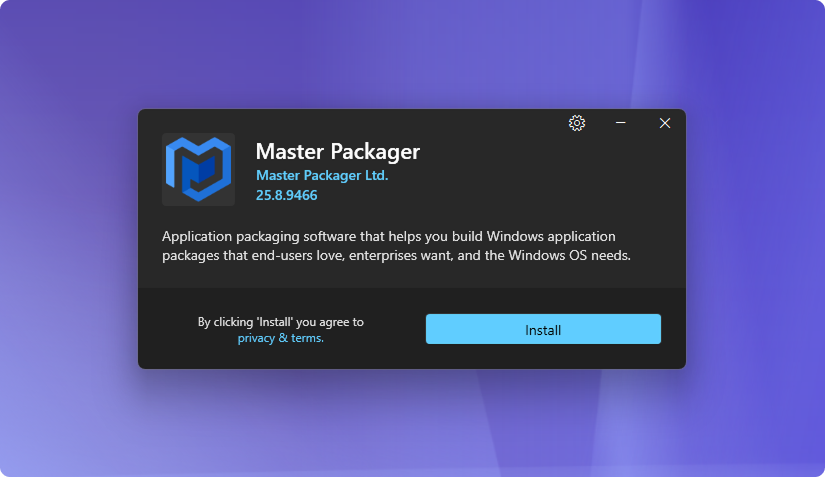
When double-clicking on the MSI we wanted to make everything about installer visible and clear.
- Logo - It should be clear what is the app logo.
- Name - Main title is the app name that is being installed.
- Vendor - Next important component is the vendor and hyperlink behind it moving the user directly to the vendor’s site.
- Version - Version is also a hyperlink moving users to the release notes URL if they want to see what’s new before installing the software.
- Description - Short description about the software you are about to install. We almost never see that implemented so we want to make it a practice.
- Privacy & Terms - All your legal info behind a URL.
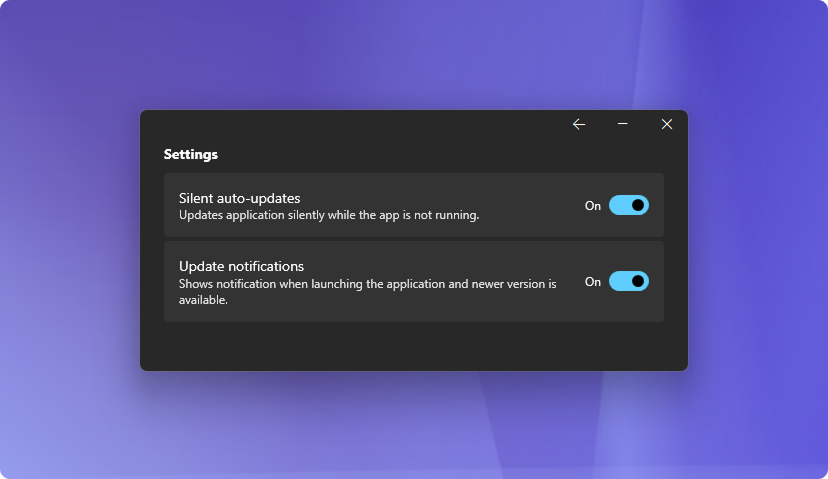
- Auto-Update settings - In the right top corner the cog wheel opens settings for user to control auto-update component if the software vendor has enabled this Master Packager Dev feature ensuring their application is always up to date either by silently installing new updates or showing update notification.
It is possible to control the hyperlink and Install button color to match your logo and style. But that’s about it.
The design is created using Windows Fluent Design guidelines, modern and for us beautiful. No options to add custom dialogs. No other ways how to modify this installer UX, because all that leads to waste, complexity and organizations re-doing the package so it can be deployed in their environment. Every component here is for a reason. To solve a problem. Nothing extra. And that’s how it should have been done a long time ago.
It’s time to turn the page so developers can focus on applications while letting Master Packager Dev focus on the installer.
Installation view
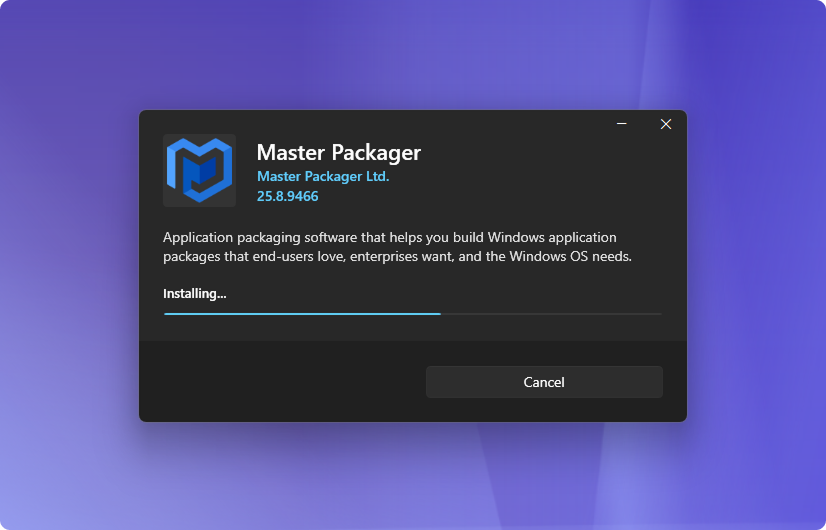
When the installation starts it displays a simple progress bar.
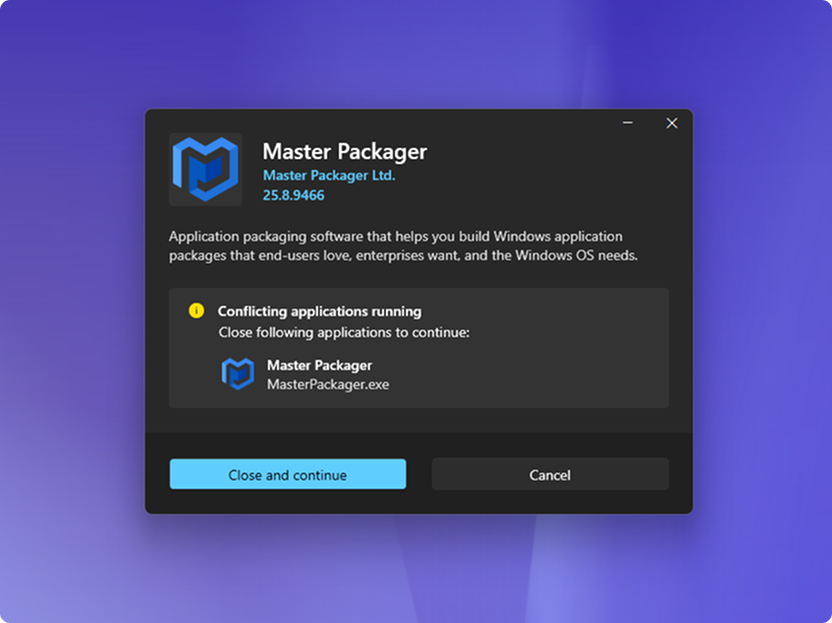
However, if the MSI detects a running conflicting process during installation (which the developer can specify in the project file), it shows a list of processes that the user needs to close. This lets the user clearly see exactly what is holding up the installation, allows them to save their work in these applications, and close the processes manually or by pressing the “Close and continue” button. The installer will then close all conflicting processes for the user.
Installation Completed view
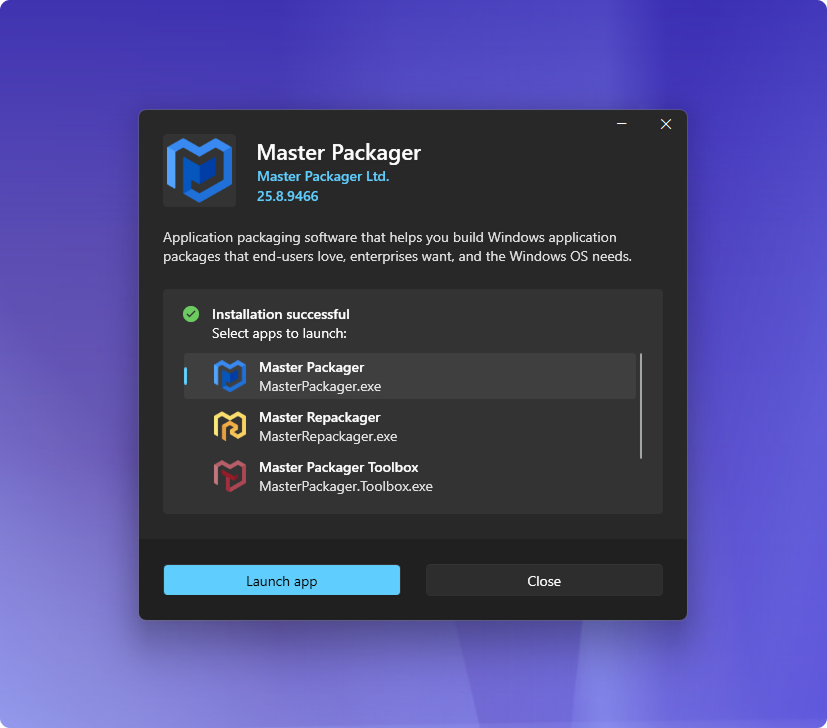
Finally when the installation is finished user can clearly see that installation was successful with the green checkmark icon and text.
But that’s not all. With 2.0.0 version developers now can specify applications end-user can choose to open straight after the installation. It is possible to add more than one application to open and user can select more than one to open directly from the installer view instead of browsing the Windows start menu and trying to guess the shortcut names.
Auto-updates view
Another component that many developers try to build their own version is installer auto updates.
With Master Packager Dev you can specify our built-in auto-updater component in the json project file like this:
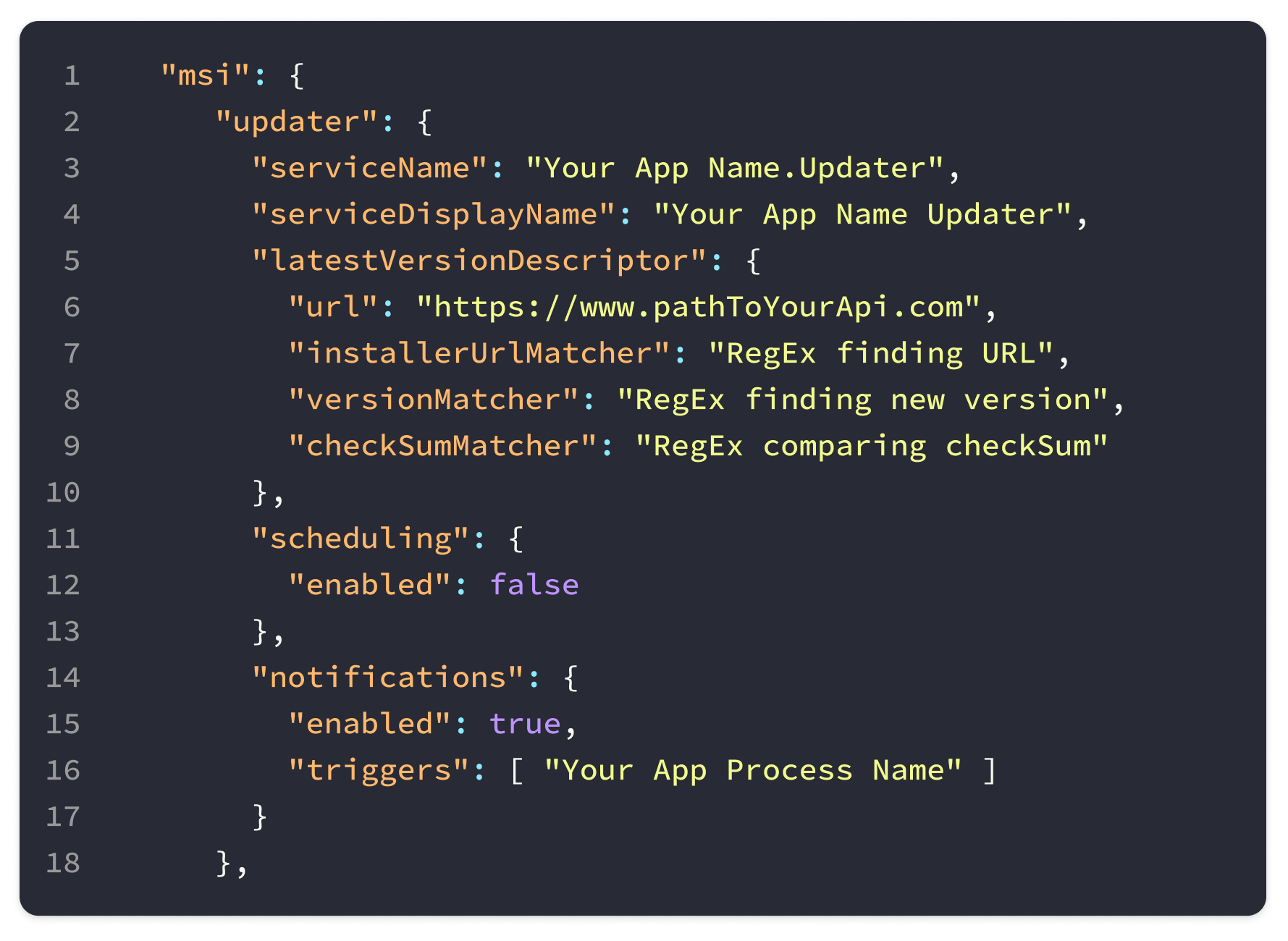
This will enable either silent updates for the application or notification like this:
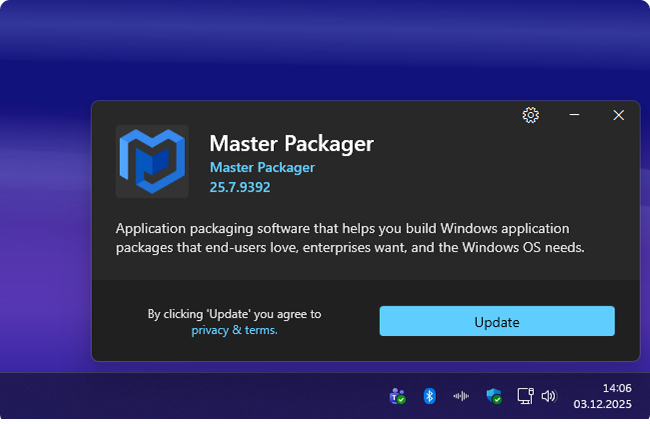
Auto-update UI was the main reason that we understood we can make the installation and update experience alike. We took the lessons learned from the update notifications UI and applied them to the installation view, creating a better experience overall.
Developers can choose whether to include the auto-update component in their installers, while end-users and organizations can control whether they want to enable auto-updates. This provides full control for everyone and ensures an excellent experience both for developers building auto-updates and for end-users using them.
Where our auto-update system truly shines is for enterprises. They can enable automatic updates during the first installation through their deployment system, and all subsequent updates happen under the system context, thus no admin permissions are required for limited users.
Other improvements
We have added more needed functionality and fixed multiple bugs that you can see in Master Packager Dev 2.0.0 release notes here.
———
We’ve spent a lot of time building an installer that solves the problems we’ve encountered while working with, fixing, and creating thousands of installers over more than a decade. A installer that you can get for your own application.
Consider choosing Master Packager Dev if you want to focus on your application - the real source of value, instead of installer.
Master Packager Dev is free for individuals and non-commercial users.