
Extracting Files and Directories
💎 Master Packager Pro feature
The Extract File and Extract Directory features allow exporting selected files or whole directory structures from the MSI to a local folder.
These options help packagers quickly access and analyze the actual content inside an MSI without using external tools.
Extracting a File
The Extract File(s) function enables exporting the selected MSI file to a folder on the local file system.
To extract a file, right-click any file in the Files view and choose Extract File(s).
This action can also be performed using the keyboard shortcut Ctrl+Alt+X.
After selecting the option Master Packager will extract the selected file next to the MSI.
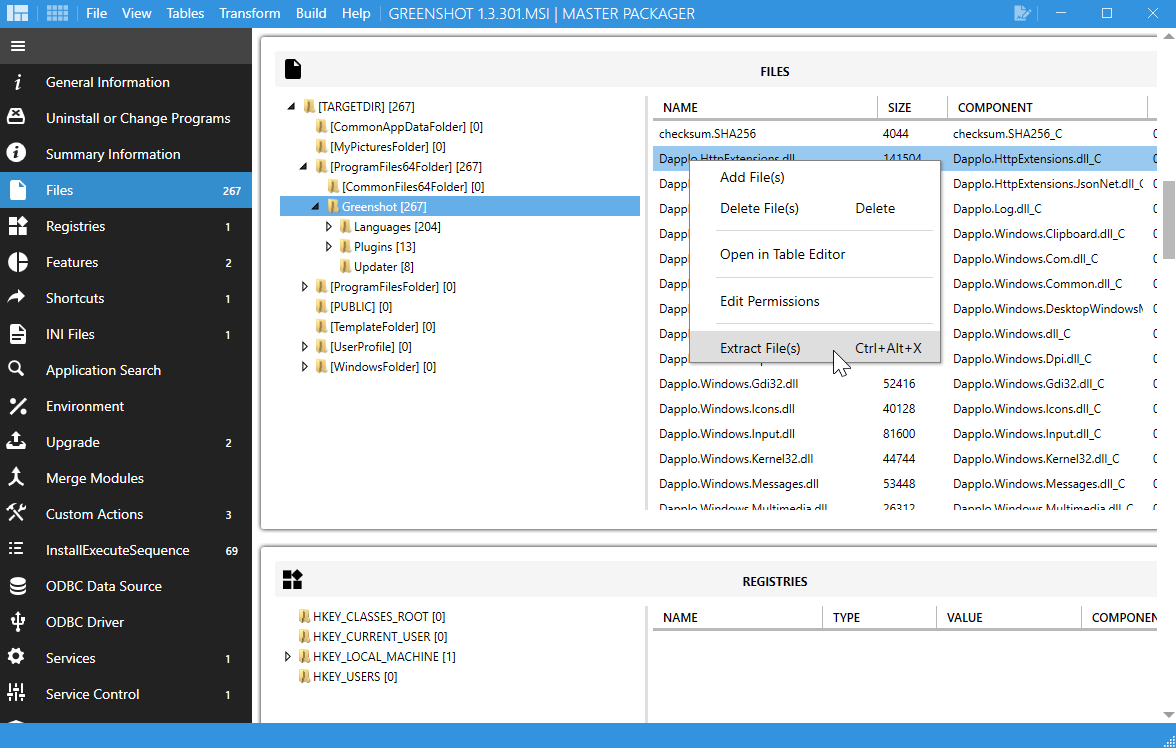
This is useful when you only need a single file (for example, a DLL, EXE, configuration file, or icon) for testing, analysis, or repackaging.
Extracting a Directory
The Extract Directory function enables extracting the selected MSI directory and all its contents to a folder on the local file system.
To extract a directory, right-click any folder in the Files view and choose Extract Directory.
This action can also be performed using the same keyboard shortcut Ctrl+Alt+X.
After selecting the option Master Packager will extract the entire directory including all files and subdirectories.
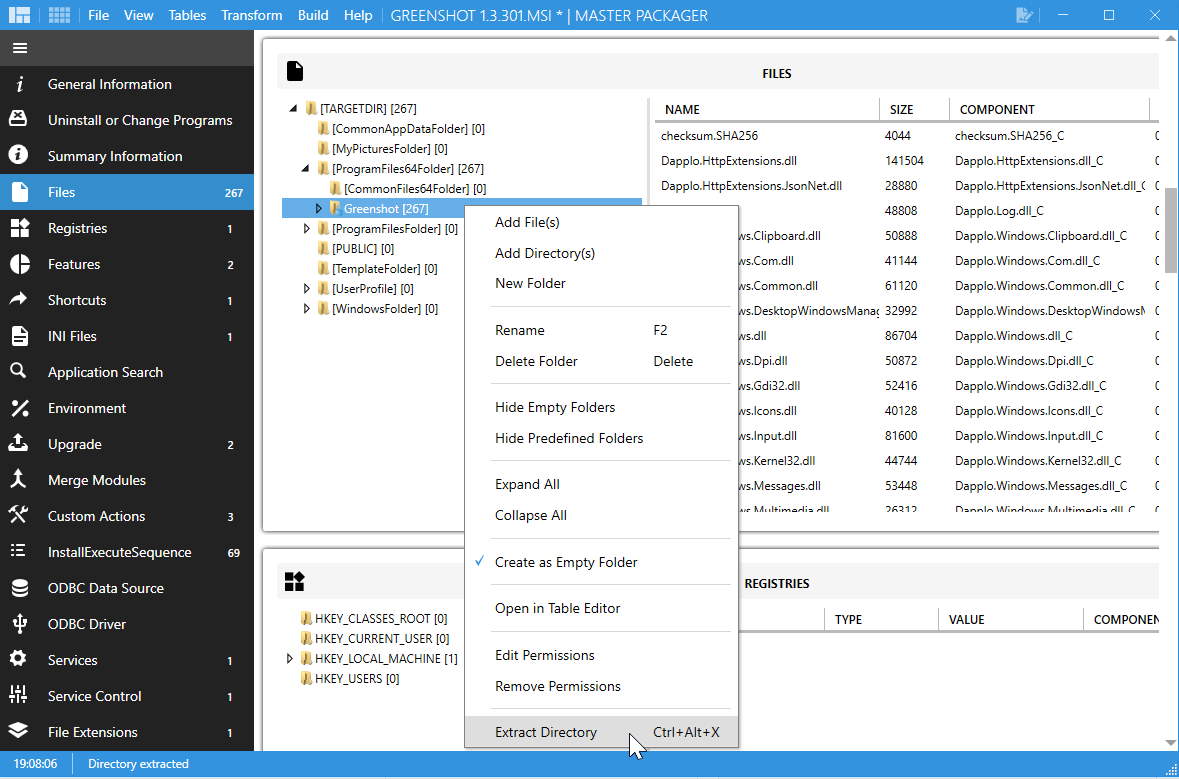
This is helpful when working with larger folder structures, multiple files, or when you need to understand how the vendor organized the application’s file layout.