
Connect to Intune with Master Packager Toolbox
💎 Master Packager Pro feature
To enable uploading Intune packages using Master Packager Toolbox there are 2 options available:
Option 1 is to just log in using your Microsoft account and approve the required permissions.
Option 2 is for advanced users that would like to use their own application registration.
1. Connecting Master Packager Toolbox to your Intune tenant
To be able to upload applications to Intune you must first sign in using an account that has Global Administrator, Cloud Application Administrator, or Application Administrator in your Microsoft Entra tenant. This is required to register a Microsoft Entra application that allows Master Packager Toolbox to communicate with Microsoft Graph API. If you do not have the required permissions, you will receive the following message:
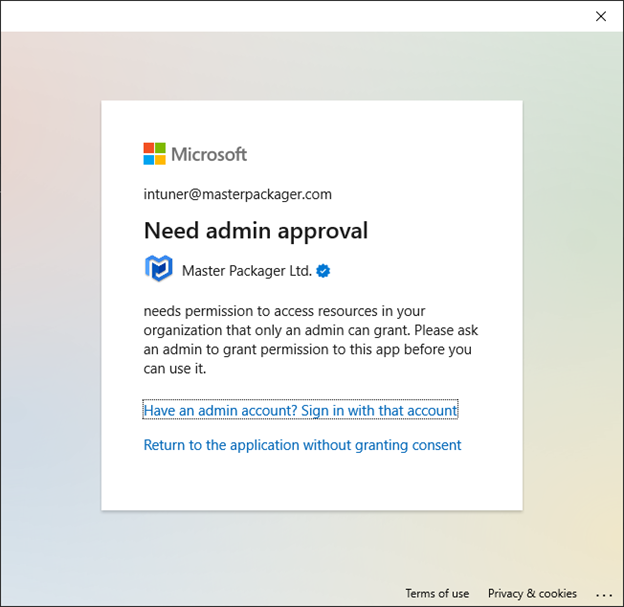
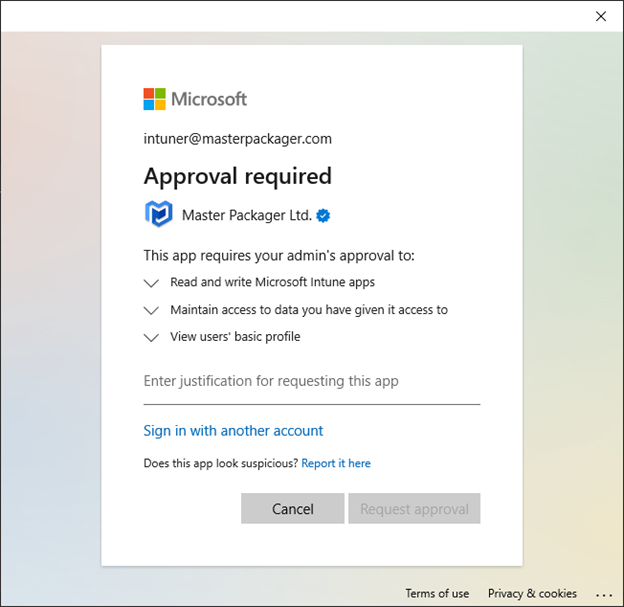
However if your organization has allowed users to request admin approval then you will receive the following message:
If you have the required permissions, you can tick the box and click accept.
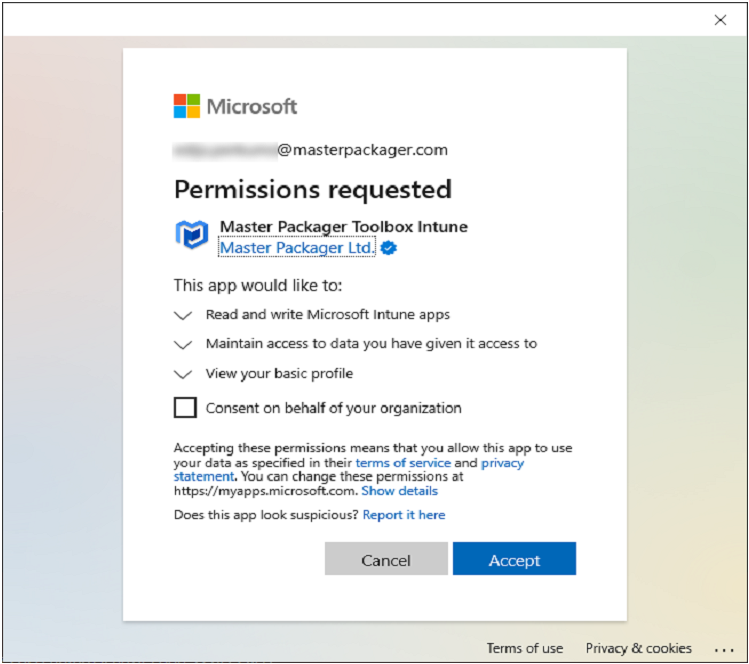
This needs to be done only once. When the application is registered you will be able to log in with any user not just the ones with privileges to register a Microsoft Entra application.
2. Connecting Master Packager Toolbox to your Intune tenant
If you would like to have more control over the permissions granted by the application registration. You may follow this guide to register your own application.
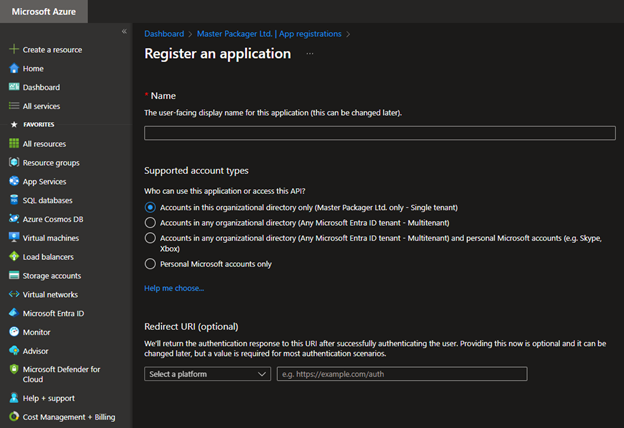
Once you have registered your application, open the API permissions section for the application and add the required permissions listed below.
API Permissions Reference
Required Permissions
These permissions are mandatory for Master Packager Toolbox to function:
-
DeviceManagementApps.ReadWrite.All — Read and write Microsoft Intune apps. Without this permission, you will not be able to upload apps.
-
offline_access — Allows the app to see and update the data you gave it access to, even when you are not currently using the app. This does not give the app any additional permissions. Required so that you do not have to sign in each time when opening Master Packager Toolbox.
-
openid — Allows users to sign in to the app with their work or school accounts and allows the app to see basic user profile information.
-
profile — Allows the app to see your users’ basic profile (e.g., name, picture, user name, email address).
Optional Permissions
These permissions enhance functionality but can be skipped:
-
Group.Read.All — Read all groups. Required to assign Intune applications to groups. If skipped, Master Packager Toolbox will not display groups for assignments.
-
Organization.Read.All — Read organization information. Required to display tenant name and tenant logo. If skipped, Master Packager Toolbox will not display the tenant name and logo.
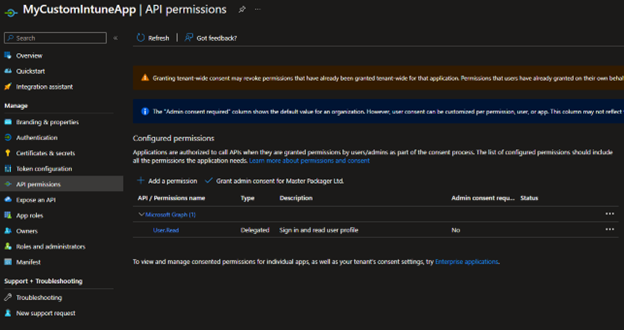
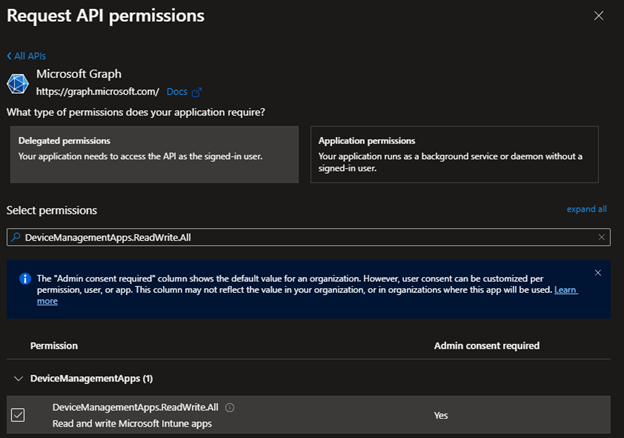
When the permissions have been added go to Authentication and add a redirect URI.

Click on “Add a platform” and select “Mobile and desktop applications”. And then add a custom redirect URI - ms-appx-web://Microsoft.AAD.BrokerPlugin/11111111-1111-1111-1111-111111111111 (replace it with the Application ID from the overview page.)
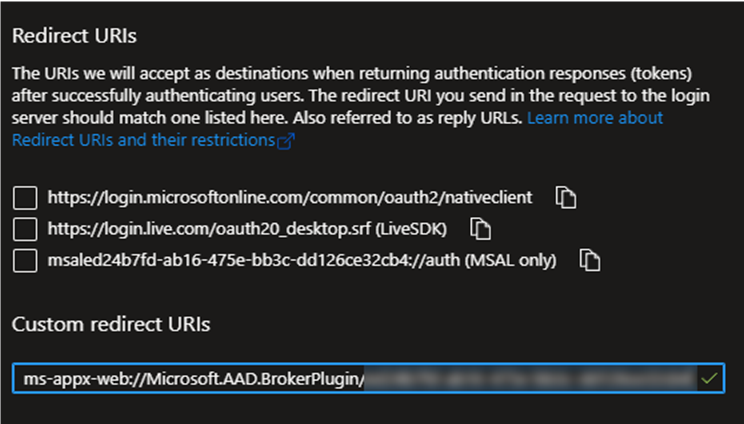
When you are done creating the application registration you need to open Master Packager Toolbox and apply your Application ID to Master Packager Toolbox. Under the “Upload to Intune” section, click the edit button.
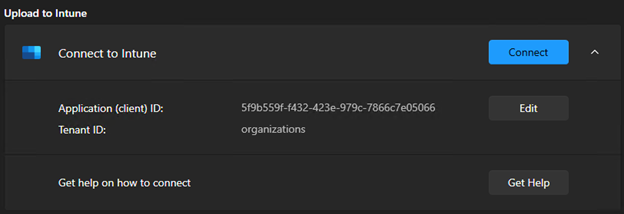
Once you have changed the Application ID you can click connect and log in using your credentials and you are ready to start uploading your package.