
Upload packages to Patch My PC with Master Packager Toolbox
💎 Master Packager Pro feature
Add a new app or update an existing one
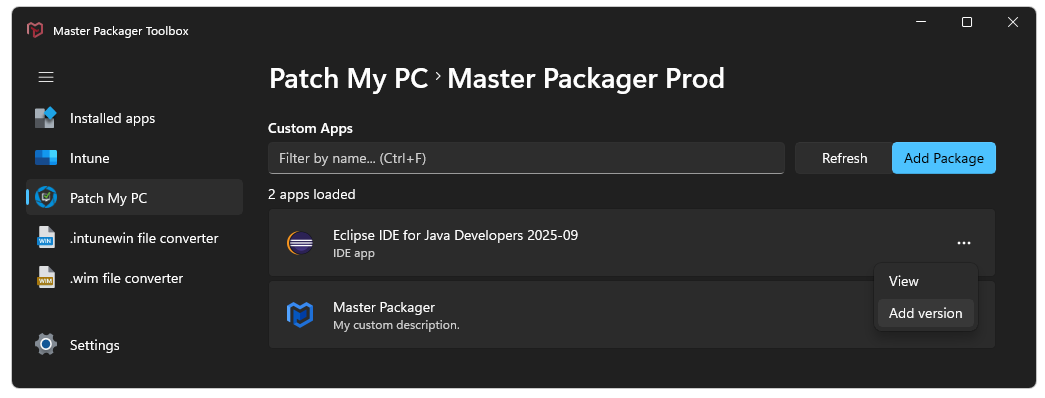
Once you have logged in to your Patch My PC account then you will be able to select your company. Opening the company will list existing custom apps. If you would like to add a new application, then press the “Add Package” button and browse for the installer. If you would like to add a new version for an existing app, then click on the three dots and select “Add version”.
Supported file types
- MSI
- MST
- EXE (Setup.exe, Invoke-AppDeployToolkit.exe)
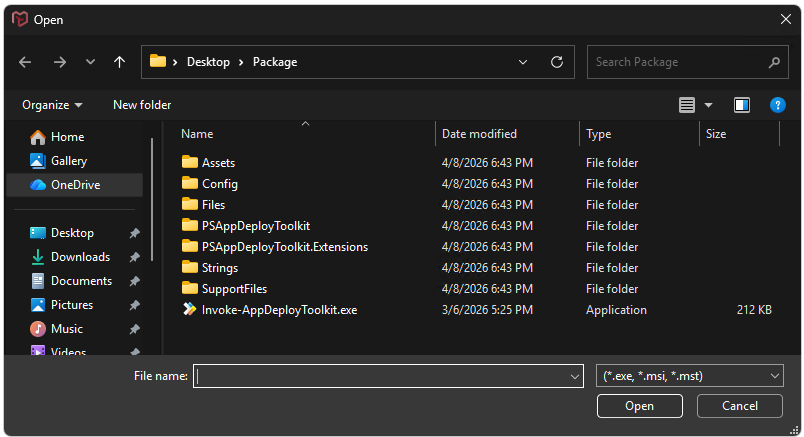
Note: When a file is selected, its entire containing folder will be uploaded, not just the individual file.
Master Packager Toolbox supports 3 file types for uploading to Patch My PC custom apps. It is recommended to always wrap your installation package using Master Wrapper. This will ensure that the additional details saved within the PSADT package are read before upload and will not need to be entered manually.
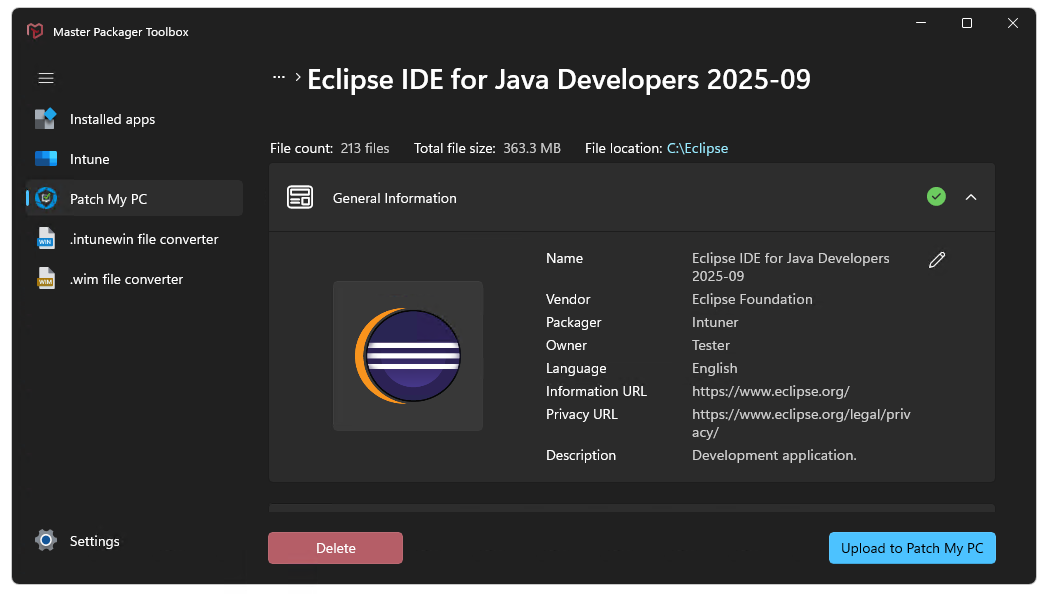
General information
- Name - Name for the application that will be displayed in the Patch My PC portal.
- Vendor - Vendor of the application.
- Packager - The developer field displayed in Intune portal.
- Owner - The owner field displayed in Intune portal.
- Language - Sets the application language
- Information URL - URL displayed in Company Portal.
- Privacy URL - URL displayed in Company Portal.
- Description - Application description displayed in Company Portal.
Deployment
- Primary installer file - The file that will be executed during installation. Cannot be modified.
- Silent install parameters - Installation parameters added when executing the primary installer file.
- Additional silent uninstall parameters -During uninstall, PatchMyPC-Scriptrunner scans the Uninstall registry key and looks for a subkey that matches the Apps & features name. If you specify Additional Silent Uninstall Parameters, these will be appended to the
UninstallString—not to the main installation file. - Install context - Configures the context in which the app is installed, either System or User. Currently custom uninstall scripts are not supported in the integration.
- Architecture - Sets the app’s architecture.
Note: Detection uses this field to determine whether to look in the 32-bit or 64-bit registry keys:
HKLM:\Software\WOW6432Node\Microsoft\Windows\CurrentVersion\Uninstall
or
HKLM:\Software\Microsoft\Windows\CurrentVersion\Uninstall
- Conflicting processes - Comma-separated list of executables that may interfere with the installation of this app. Leave this empty if you wish for PSADT to handle the running processes. Otherwise it will be handled by the Manage Conflicting Processes feature.
Detection method
- Apps & features name - The name of the app as it appears in Add or remove programs. You can use Master Packager Toolbox Installed apps feature to locate the name.
- Version - The version of the application as it is displayed in the Installed apps section.
Note: Detection uses this field to determine if the app is installed by looking for a matching DisplayVersion entry in the following registry key:
HKLM:\Software\Microsoft\Windows\CurrentVersion\Uninstall
Additional Information
- Notes - Notes that are displayed in the Intune portal. This can be used to share packaging related information with your colleagues.